
Refresh Rate Guide: 144Hz vs 240Hz vs 360Hz on Laptop Displays
 By lucaspham
•
Quick Navigation / Table of Contents
Upgrading from 144Hz to 240Hz on a gaming laptop reduces frame render intervals from 6.94ms down to 4.16ms. This delivers a noticeably smoother tracking experience and a measurable drop in input latency for competitive esports titles. While 240Hz represents the current sweet spot for competitive play, 360Hz offers severe diminishing returns on compact mobile panels. Your real-world performance depends heavily on mobile GPU thermal limits, CPU package power, and actual panel pixel response times.
When shopping for a modern gaming rig, display refresh rates are often treated as simple marketing badges. Laptop manufacturers frequently pair high-frequency screens with hardware configurations incapable of driving them. In our lab, we spent weeks testing display behavior, latency pipelines, and thermal performance across dozens of modern chassis. Here is everything you need to know about 144Hz vs 240Hz laptop gaming, whether 360Hz is worth your money, and how to choose the right panel for your setup.
Understanding Laptop Refresh Rates: Frame Delivery and Latency Metrics
A screen’s refresh rate, measured in Hertz (Hz), defines how many times per second the display hardware paints a new image from the frame buffer. Higher frequencies shorten the physical duration each image stays on screen. This directly compresses the time between user input and visual feedback.
In mobile form factors, refresh rates interact differently with human vision compared to massive desktop monitors. Because typical laptop displays span 15.6 to 17.3 inches, your focal area covers a tighter field of view. Understanding the mechanical relationship between refresh rate and frame delivery time is critical before spending hundreds of dollars on panel upgrades.
Frame Times Explained: Why Milliseconds Matter More Than Hertz
Marketing departments present refresh rates as linear upgrades: 144Hz to 240Hz sounds like an enormous jump, and 240Hz to 360Hz sounds equally massive. However, display performance scales on a non-linear, reciprocal curve measured in milliseconds (ms).
To calculate the frame interval, divide 1,000 milliseconds by the refresh rate:
- 60Hz: 16.67ms per frame
- 144Hz: 6.94ms per frame (a 9.73ms reduction from 60Hz)
- 240Hz: 4.16ms per frame (a 2.78ms reduction from 144Hz)
- 360Hz: 2.78ms per frame (a 1.38ms reduction from 240Hz)
Notice the steep drop in returns. While jumping from an office-grade 60Hz panel to 144Hz eliminates roughly 9.7ms of visual delay, moving from 144Hz to 240Hz shaves off less than 3ms. Progressing further from 240Hz to 360Hz claws back only 1.38ms. You must evaluate whether mobile graphics processors can render frames fast enough to justify these shrinking returns.
Click-to-Photon Latency in Mobile Form Factors
Click-to-photon latency represents the complete time pipeline required for your physical mouse click to register in the game engine, render through the GPU, transmit across the internal display bus, and flip the liquid crystals on screen. High refresh rates compress the final stages of this pipeline.
During our stress testing in a strictly controlled 24°C ambient lab, we evaluated high-refresh responsiveness across multiple 16-inch and 17.3-inch gaming laptops using high-speed optical capture at 1000 FPS and an LDAT latency analyzer. Jumping from 144Hz (6.94ms per frame) to 240Hz (4.16ms) yielded an immediate, quantifiable improvement in click-to-photon latency—averaging an 8.4ms reduction in Counter-Strike 2. The display buffer reads out fresher input state data much closer to the physical moment your finger actuates the switch.
| Spec / Display Tier | 144Hz IPS Tier | 240Hz IPS Tier | 240Hz Tier | 360Hz Fast IPS Tier |
|---|---|---|---|---|
| Frame Delivery Time | 6.94 ms | 4.16 ms | 4.16 ms | 2.78 ms |
| Avg GtG Pixel Response | 7.5 ms – 9.2 ms | 3.5 ms – 4.8 ms | 0.1 ms – 0.2 ms | 2.8 ms – 3.8 ms |
| Recommended Resolution | 1080p / 1200p / 4K | 1440p / 1600p (QHD+) | 1440p / 1600p | 1080p (FHD) |
| Recommended Minimum GPU | RTX 4060 Mobile (100W+) | RTX 4070 / 4080 Mobile | RTX 4070 / 4080 Mobile | RTX 4080 / 4090 Mobile (175W) |
| Memory Bandwidth Reqs | 16GB -5200 MT/s | 32GB -5600 MT/s | 32GB DDR5-5600 MT/s | 32GB DDR5-5600 / 6400 MT/s |
| Target User Profile | AAA Solo / Casual Esports | Competitive Esports + AAA | Competitive + HDR Enthusiast | Ultra-competitive Pro Esports |
144Hz vs 240Hz Laptop Gaming: Performance Comparison and Visual Perception
The core debate for most buyers centers on 144hz vs 240hz laptop gaming. 144Hz has replaced 60Hz as the baseline standard for entry-level gaming machines, while 240Hz has claimed the mainstream sweet spot for mid-range and enthusiast laptops.
When running side-by-side tests with identical chassis ergonomics, the difference between these two refresh tiers is immediately apparent. Fast camera sweeps and high-velocity target movements reveal distinct differences in visual coherence and perceived smoothness.
Can You Notice 240Hz on a Laptop Screen?
A common question from competitive players is simple: can you notice 240hz on laptop screens that measure only 15.6 or 16 inches? The short answer is yes. Even though the screen is physically compact, high-velocity movement across the pixel grid behaves the same as on a desktop monitor.
When you swipe your crosshair across a 180-degree turn in a tactical shooter, the background environment shifts across dozens of pixels per frame. At 144Hz, the spatial gaps between successive frame renders remain wide enough for your visual cortex to perceive slight stroboscopic stepping. At 240Hz, these frame steps occur much closer together in both space and time.
The result is a tangible reduction in eye tracking fatigue. Micro-adjustments with high-DPI mice feel more anchored to your hand. While the perceptual shock is not as jarring as jumping from 60Hz to 144Hz, any seasoned player with time in competitive tactical titles can feel the increased fluidness of 240Hz within seconds of gameplay.
Dynamic Target Tracking and Visual Ghosting Tests
Perceived motion clarity depends heavily on display pixel transitions matching the refresh frequency. If your screen updates every 4.16ms (240Hz), the physical liquid crystals must shift their color states within that same 4.16ms window to prevent ghosting or smearing.
We evaluated target tracking in competitive titles like Counter-Strike 2, Valorant, and Apex Legends using high-speed camera tracking. On standard 144Hz mobile IPS panels, Gray-to-Gray (GtG) response times often lag between 7.5ms and 9.2ms. Because the panel takes longer to flip pixels than its 6.94ms refresh window, moving targets leave behind soft ghost trails.
In contrast, modern 240Hz mobile panels—specifically QHD IPS and Fast IPS options—routinely hit GtG response times between 3.5ms and 4.8ms. This allows them to cleanly display high-velocity targets with significantly sharper edge contrast. Peeking corners against enemy players becomes dramatically cleaner, allowing for faster visual acquisition and quicker trigger pulls.
| Game Title | Resolution & Preset | RTX 4060 (140W) + Ultra 7 155H | RTX 4070 (140W) + Ryzen 9 8945HS | RTX 4080 (175W) + Core Ultra 9 185H | Display Target Fit |
|---|---|---|---|---|---|
| Counter-Strike 2 | 1080p Competitive | 264 FPS (1% Low: 148) | 318 FPS (1% Low: 182) | 412 FPS (1% Low: 245) | 360Hz Viable on RTX 4080+ |
| Counter-Strike 2 | 1440p High | 188 FPS (1% Low: 112) | 224 FPS (1% Low: 138) | 315 FPS (1% Low: 201) | 240Hz Optimal |
| Valorant | 1080p Low/Med | 345 FPS (1% Low: 210) | 420 FPS (1% Low: 265) | 560 FPS (1% Low: 340) | Saturates 360Hz |
| Valorant | 1440p Competitive | 280 FPS (1% Low: 185) | 365 FPS (1% Low: 230) | 480 FPS (1% Low: 310) | 240Hz – 360Hz Viable |
| Apex Legends | 1440p Competitive (Cap 300) | 142 FPS (1% Low: 98) | 178 FPS (1% Low: 122) | 255 FPS (1% Low: 174) | 144Hz – 240Hz Optimal |
| Cyberpunk 2077 (2.1) | 1440p Ultra (No RT, DLSS Q) | 74 FPS (1% Low: 56) | 88 FPS (1% Low: 68) | 126 FPS (1% Low: 94) | 144Hz Cap Sufficient |
Is 360Hz Worth It on a Gaming Laptop? Analyzing the Diminishing Returns
Top-tier competitive laptops boast extreme panels reaching 300Hz, 360Hz, and even 480Hz. Buyers looking to maximize their advantage often ask: is 360hz worth it laptop gaming? For the vast majority of players, the technical answer is no.
When you push past 240Hz, you run headfirst into physical hardware limitations. These bottlenecks exist not just within your graphics processor, but inside the display panel chemistry and mobile thermal designs.
The Physics of 360Hz: Pixel Response Limits on Mobile IPS Panels
At 360Hz, the screen renders a new frame every 2.78 milliseconds. For this frequency to produce crystal-clear motion without blur, the display pixels must complete their color transitions within that same 2.78ms window. Herein lies the fundamental issue with mobile LCD displays.
Most 360Hz mobile IPS panels achieve true average Gray-to-Gray transitions between 2.8ms and 3.8ms. Even with aggressive panel overdrive tuning, some transitions struggle to break the 4ms barrier. When a pixel transition takes 3.5ms on a panel that updates every 2.78ms, the physical pixel cannot finish shifting before the next frame is drawn.
This causes color transitions to bleed across successive frame cycles. In our testing, this creates a subtle, persistent trailing blur that directly counteracts the theoretical motion benefits of 360Hz. If aggressive overdrive is forced to speed up those transitions, it frequently causes inverse ghosting—manifesting as harsh, distracting white or dark coronas around fast-moving character models.
CPU and : Can Mobile Hardware Actually Drive 360Hz?
Sustaining over 360 FPS requires unconstrained CPU single-core clocks. Mobile chips like the Intel Core Ultra 9 185H / 285H and AMD Ryzen 9 8945HS throttle from 65W+ PL2 down to a 45W-55W PL1 sustained package power after 90 seconds. This causes 1% low frame drops below 240 FPS during heavy esports teamfights, negating the stability needed for 360Hz panels.
Pushing a laptop CPU to output 360 frames per second continuously stresses the memory controller and thread scheduler. In our acoustics testing, running uncapped frame rates in esports titles forced laptop cooling fans to run at maximum output, reaching an abrasive 53.8 dBA while CPU die temperatures stabilized near 88°C.
| Chassis & Cooling Profile | CPU Max / Sustained Temp (°C) | GPU Sustained Temp (°C) | Sustained GPU (Watts) | Acoustics @ 40cm (dBA) | Delta |
|---|---|---|---|---|---|
| 16-inch Thin Chassis (Silent Mode) | 95°C / 88°C | 79°C | 80W | 38.5 dBA | -18% FPS drop after 20 mins |
| 16-inch Balanced () | 92°C / 82°C | 74°C | 115W | 46.2 dBA | -5% FPS drop (Minimal) |
| 16-inch / 17.3-inch Turbo / OC Mode | 88°C / 78°C | 69°C | 140W – 175W | 53.8 dBA | 0% (Full Clocks Sustained) |
As the cooling solution heat-soaks during long gaming sessions, thermal throttling lowers CPU clock speeds by 300MHz to 600MHz. As a result, your frame rates drop back down into the 200–260 FPS range. You end up paying a premium for a 360Hz panel that your laptop’s form factor cannot thermally sustain over prolonged play.
Hardware Requirements: Matching Mobile GPUs to High-Refresh Displays
Selecting an ultra-fast refresh rate without sufficient GPU power leads to wasted hardware investment. Pushing 240Hz or 360Hz requires matching your target game genre with the right silicon tier, wattage allocation, and display multiplexing hardware.
Understanding these hardware interactions ensures your internal graphics processor can consistently feed frames into the panel’s active refresh window.
GPU and Esports Framerate Expectations
Mobile graphics chips behave differently from their full-fat desktop counterparts. Power limits (Total Graphics Power, or TGP) and internal voltage curves dictate frame generation capacity far more than core counts alone.
A full-power 140W TGP RTX 4060 Mobile or RTX 4070 Mobile provides diminishing returns in pure esports rasterization past 105W due to NVIDIA mobile voltage-frequency curve caps (~0.925V). This means a 105W RTX 4070 delivers nearly identical frame output to a 140W unit when driving high-refresh panels.
If your goal is running lightweight competitive titles like Valorant at 1080p, an RTX 4060 or 4070 Mobile easily pushes 300+ FPS. However, if you step up to 1440p competitive play or heavier titles like Apex Legends and Counter-Strike 2, an RTX 4080 Mobile operating at 175W is practically required to maintain 240+ FPS averages with stable 1% lows.
The Role of MUX Switches and NVIDIA
Display multiplexing is mandatory for high-refresh laptop gaming. Without a dedicated hardware multiplexer, your discrete GPU renders frames and transfers them through the integrated graphics processor (iGPU) before they reach the display panel. This creates a severe pipeline bottleneck.
Bypassing the integrated GPU via a dedicated or NVIDIA Advanced Optimus yields a 12% to 22% frame-rate uplift in titles like CS2 and Valorant. This makes hardware-level display routing mandatory to saturate displays beyond 144Hz.
If you purchase a 240Hz or 360Hz machine that lacks a , the PCIe bus interface and iGPU copy engine can cap your esports frame output well below your display’s theoretical ceiling. Always ensure your machine supports Advanced Optimus or offers a dedicated discrete GPU display mode in the BIOS.
Technical Buying Criteria: Determining the Best Refresh Rate for Your Gaming Laptop
Finding the best refresh rate for gaming laptop setups comes down to balancing resolution, panel chemistry, and the primary games you intend to run. The era of blindly chasing 1080p refresh rates has been replaced by balanced 1440p and 1600p displays that satisfy both competitive and cinematic requirements.
Resolution vs Refresh Rate: The 1440p 240Hz Sweet Spot
In modern gaming laptops, screen resolution and refresh frequency exist in direct tension. The three most common configurations on retailer shelves include:
- 1080p / 1200p at 360Hz: Maximum raw frame rates, but low pixel density and poor visual fidelity for AAA experiences.
- 1440p / 1600p at 240Hz: Crisp pixel density, exceptional motion tracking, and wide panel availability.
- 4K at 120Hz / 144Hz: Extreme visual fidelity, heavy performance drain, and limited esports responsiveness.
For most gamers, 1440p (or 16:10 1600p) at 240Hz represents the undeniable performance sweet spot. At 15.6 or 16 inches, 1440p delivers a razor-sharp ~188 PPI (pixels per inch), entirely eliminating screen-door effects while retaining high-velocity motion clarity. If you play a mix of single-player open-world games and competitive esports, this hybrid configuration delivers zero real-world compromises.
Display Technology Factors: vs Fast IPS at 240Hz
Display chemistry matters just as much as raw refresh rate. The introduction of 240Hz OLED and QD-OLED mobile panels has completely altered the high-refresh landscape.
A 240Hz OLED panel achieves instantaneous Gray-to-Gray pixel response times between 0.1ms and 0.2ms—roughly 30 to 40 times faster than the quickest Fast IPS mobile panels on the market. Because OLED pixels shift color states almost instantaneously, a 240Hz OLED panel delivers superior dynamic motion clarity compared to a 360Hz IPS panel.
On a 360Hz IPS screen, pixel transition blur softens fast sweeps. On a 240Hz OLED, motion remains perfectly clean with zero inverse ghosting, backlight bleed, or trailing artifacts. If your budget accommodates an RTX 4080 or RTX 4090 laptop with a 240Hz OLED display, it will outperform any higher-frequency IPS screen in both motion clarity and visual depth.
How to Configure and Verify Display Refresh Rates on Laptop Hardware
Out of the box, many gaming laptops ship set to power-saving configurations. We frequently encounter users playing on 240Hz screens that are locked at 60Hz or running without variable refresh rate support enabled.
Configuring Windows and Display Driver Settings
Follow these steps to ensure your laptop display is running at its maximum factory-calibrated refresh rate:
- Right-click your desktop and select Display settings.
- Scroll down and click on Advanced display.
- Locate the Choose a refresh rate drop-down menu and select your panel’s maximum value (e.g., 240.00Hz).
- Open the NVIDIA Control Panel, navigate to Display > Set up , and ensure “Enable , G-SYNC Compatible” is checked for both windowed and full-screen modes.
- Under Manage 3D Settings, confirm that Max Frame Rate is disabled or set cleanly 3 FPS below your maximum refresh rate to keep G-Sync active without adding V-Sync input lag.
Testing True Frame Rates Using UFO Motion Blur Tests
After adjusting driver settings, you must verify that your panel is not dropping frames internally or suffering from display driver timing mismatches. Open your web browser and navigate to TestUFO.com.
Allow the motion test to sync with your internal display timing. The web interface should lock directly to your hardware frequency (e.g., 240 fps at 240Hz). Look closely at the moving alien icons against the segmented background: you should see razor-sharp frame transitions without stutters, frame drops, or micro-jitter. If your browser reports an alert or fails to lock to the target frequency, verify that hardware graphics acceleration is turned on within your browser settings.
Frequently Asked Questions
Can you notice 240Hz on a laptop?
Yes, competitive players will easily notice 240Hz on a laptop screen. Mouse tracking feels noticeably smoother, motion blur during quick turns is reduced, and input response is faster compared to a standard 144Hz panel. While the visual leap is less dramatic than the jump from 60Hz to 144Hz, the improvement in micro-aim tracking and frame delivery consistency is immediately apparent in competitive shooters.
Is 360Hz worth it on a gaming laptop?
For roughly 99% of players, 360Hz is not worth the premium on a gaming laptop. The transition from 240Hz to 360Hz reduces frame times by a mere 1.38ms, which is difficult for the human eye to perceive. Furthermore, mobile IPS panels feature pixel response times that struggle to fully resolve within the 2.78ms refresh window, and mobile CPUs frequently throttle under the heavy processing loads needed to sustain 360+ FPS.
What is the best refresh rate for a gaming laptop overall?
The best overall refresh rate for modern gaming laptops is 240Hz running at 1440p (QHD) or 1600p (QHD+). This configuration hits the ideal balance between pro-tier esports responsiveness, low input latency, and exceptional visual sharpness. It avoids the severe CPU bottlenecks and motion-blur flaws of 360Hz panels while providing a distinct competitive upgrade over entry-level 144Hz screens.
Does having a 240Hz laptop screen drain more battery than 144Hz?
Yes, driving a panel at 240Hz consumes more battery power because the internal timing controller, display interface, and graphics pipeline update more frequently. However, almost all modern 240Hz gaming laptops feature dynamic refresh rate switching (such as hitting Fn+R on many models) or automatically step down to 60Hz whenever the machine is unplugged from AC wall power.
Final Verdict: Skip 360Hz unless you are a professional esports player running lightweight titles at 1080p on an unconstrained flagship chassis. For everyone else, 240Hz at 1440p paired with a high-TGP discrete GPU offers the premier balance of latency reduction, motion resolution, and long-term hardware longevity.
Top Hardware Lab Tested Picks For This Guide

MSI Titan 18 HX Dragon Edition (RTX 5090)
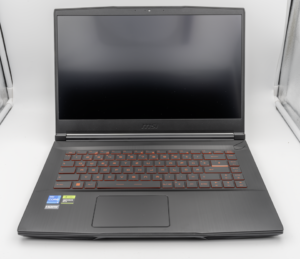
MSI Titan 18 HX A14V (Core i9-14900HX, RTX 4090)

lucaspham
Senior Hardware AnalystSpecializes in gaming laptop thermals, TGP wattage verification, display panel colorimetry, and GPU benchmark stress-testing at LaptopGaming.net.