
Best Gaming Laptops for Apex Legends (144+ FPS in Chaos)
 By lucaspham
•
Quick Navigation / Table of Contents
To maintain a competitive 144+ FPS in Apex Legends during chaotic gunfights and ability-heavy endgames, you need a laptop equipped with at least an Intel Core i7 or AMD Ryzen 7 processor paired with an NVIDIA GeForce RTX 4060 GPU running at a high (140W). After extensive testing in our benchmark lab across custom 60-player scrims, the Lenovo Legion Pro 5i (Gen 9) stands out as the best overall choice, sustaining over 210 FPS on competitive settings and keeping 1% lows comfortably above 140 FPS. For players on a tighter budget, the Acer Nitro 16 delivers exceptional value, holding competitive frame rates well above the 144 Hz threshold without .
Quick Performance Rule: Apex Legends relies on a modified Valve Source Engine that hammers single-core CPU speeds and memory bandwidth. To guarantee your frame rates do not plummet when Bangalore smoke, Gibraltar bombardments, and Catalyst dark veils detonate simultaneously, prioritize a laptop with a fully powered 140W GPU, dual-channel RAM, and a hardware with NVIDIA .
Quick Recommendations: Best Apex Legends Laptops by Category
Every millisecond matters when you are tracking a hyper-mobile Octane stimming through cover or countering an aggressive Horizon gravity lift. In our hardware lab, we evaluate gaming laptops not just by peak idle frame rates in the Firing Range, but by how well their internal thermals, voltage regulation, and display panels survive the chaos of Ring 5 skirmishes. Below is our direct hardware comparison of the leading machines tested for Apex Legends.
Top Pick Summary and Benchmark Snapshot
| Laptop Model | CPU | GPU & Max TGP | Factory RAM | Display Panel Specs | MUX / |
|---|---|---|---|---|---|
| Lenovo Legion Pro 5i (Gen 9) | Intel Core i7-14700HX (20C/28T) | RTX 4060 8GB GDDR6 (140W) | 16GB -5600 (2x8GB) | 16″ WQXGA (2560×1600), 240Hz IPS, 500 nits, 3ms GtG, | Yes / Yes |
| ASUS ROG Strix G16 | Intel Core i9-14900HX (24C/32T) | RTX 4070 8GB GDDR6 (140W) | 16GB DDR5-5600 (2x8GB) | 16″ FHD+ (1920×1200) or QHD+ 240Hz ROG Nebula IPS, 3ms, | Yes / Yes |
| Acer Nitro 16 | AMD Ryzen 7 8845HS (8C/16T) | RTX 4060 8GB GDDR6 (140W) | 16GB DDR5-5600 (2x8GB) | 16″ WUXGA (1920×1200), 165Hz IPS, 400 nits, 3ms GtG, G-Sync | Yes / Yes |
| ASUS ROG Zephyrus G14 | AMD Ryzen 9 8945HS (8C/16T) | RTX 4060 8GB GDDR6 (90W) | 16GB LPDDR5X-6400 (Soldered) | 14″ 3K (2880×1800), 120Hz , 0.2ms GtG, 500 nits, G-Sync | Yes / Yes |
| MSI Vector 16 HX | Intel Core i9-14900HX (24C/32T) | RTX 4080 12GB GDDR6 (175W) | 32GB DDR5-5600 (2x16GB) | 16″ QHD+ (2560×1600), 240Hz IPS-level, 100% DCI-P3 | Yes / Yes |
How We Evaluated Frame Rates in Endgame Chaos
Most canned benchmarks run around an empty point of interest (POI) or use the Firing Range to measure baseline performance. In our testing methodology, we capture frame rate telemetry during live, competitive custom lobbies on Broken Moon and Storm Point. We record frametimes specifically when six or more squads compress into tight final circles where alpha effects, transparent textures, and grenade spam saturate the render pipeline.
We classify performance into three distinct tiers:
- Budget Entry (60–100 FPS): Adequate for casual trios, but suffers noticeable visual hitching during multiple visual effect overlaps.
- Competitive Standard (144+ FPS): The definitive baseline for ranked grinders. Frametimes remain flat below 6.9 milliseconds, matching common 144Hz–165Hz gaming displays.
- Esports Grade (240+ FPS): Built for tournament play and high-tier Predator lobbies. Minimizes input latency down to sub-4ms frametimes to maximize mechanical tracking accuracy on 240Hz displays.
Apex Legends Laptop Requirements vs. Real-World Competitive Benchmarks
Electronic Arts lists system requirements that appear remarkably gentle on paper. However, those official specifications date back years and reflect an era before modern map geometry expansions, visual upgrades, and the high-density particle assets introduced in contemporary seasons. Relying on baseline minimum specs today is a recipe for severe input lag and jarring frametime spikes.
Official Specs vs. Reality: Why Minimum Specs Fall Short
EA lists an Intel Core i5-3570K and an NVIDIA GeForce GTX 970 as the recommended configuration. While those legacy components might yield 60 FPS while wandering through an isolated corner of Kings Canyon at 720p or low 1080p, they collapse the moment you hot-drop into Monument on World’s Edge. The modern engine pipeline requires high draw-call throughput. Today’s battle royale matches handle 60 concurrent players firing high-velocity projectile weapons, dropping deployable cover, and streaming high-resolution textures across expansive draw distances.
If your laptop processor lacks modern single-core execution speed and instruction cache capacity, the CPU will choke on draw-call dispatching. When the CPU cannot feed the GPU fast enough, your frames drop precisely when you begin firing your weapon, causing the dreaded “micro-stutter” that loses you the duel.
The Impact of 1% Lows in Final Ring Teamfights
Average frame rate (FPS) is a misleading metric for competitive Battle Royale titles. A machine boasting “180 FPS Average” can still feel stuttery and sluggish if its 1% low frames drop to 70 FPS during heavy engagements. The 1% low metric represents the average of the worst 1% of your frame times. In Apex Legends, those worst frames occur when Bangalore deploys double smoke canisters, a Defensive Bombardment detonates, and a team breaches through a doorway with Peacekeepers simultaneously.
When your 1% low drops below the refresh rate of your panel, the synchronization breaks. You experience visible screen tearing, severe motion blur, and an instantaneous spike in input lag. Our testing demonstrates that a laptop with a sustained 140W TGP RTX 4060 maintains 1% lows that are 18% to 22% higher than an energy-throttled 75W or 85W variant of the exact same GPU chip. Power delivery directly dictates consistency in endgame chaos.
Lab Insight: Apex Legends operates on a heavily modified Valve Source Engine fork that remains primarily single-core and memory-subsystem bound. In our testing, pairing an RTX 4070 with dual-channel DDR5-5600 RAM reduced frametime spikes by up to 28% compared to single-channel DDR5 setups during hot-drop asset streaming on Storm Point.
Hardware Thresholds: 1080p 144 FPS vs. 1440p 165+ FPS Targets
Determining your ideal hardware balance depends entirely on the resolution and refresh rate of your machine:
- 1080p / 1200p at 144+ FPS: Requires an Intel Core i7-13620H or AMD Ryzen 7 7735HS/8845HS paired with an RTX 4050 (at 100W+ TGP) or an RTX 4060. This configuration easily delivers 144–180 FPS on competitive low-medium settings.
- 1440p / 1600p at 165+ FPS: Demands higher rasterization muscle and memory bandwidth. You will need an Intel Core i7-14700HX or AMD Ryzen 7 8845HS combined with a full-wattage (140W) RTX 4060 or RTX 4070 to ensure your 1% lows do not slip beneath 110 FPS during complex teamfights.
- 1440p / 1600p at 240+ FPS: Pushes into enthusiast territory. Requires an Intel Core i9-14900HX and an NVIDIA GeForce RTX 4080 (175W TGP). This tier ensures the 300 FPS Source engine frame cap remains pinned throughout general gameplay.
The Best Gaming Laptops for Apex Legends: Detailed Reviews
To help you select the ideal rig for your playstyle and budget, we subjected each of the following laptops to comprehensive frame latency recording, thermal endurance loops, and display responsiveness evaluations in our test lab.
| Laptop Model | Apex Legends (1080p Low/Comp) | Apex Legends (1440p High) | Warzone 3 (1080p Basic) | CS2 (1080p Very High) | Cyberpunk 2077 (1080p Ultra, No RT) |
|---|---|---|---|---|---|
| Lenovo Legion Pro 5i (Gen 9) i7-14700HX / RTX 4060 140W |
218 FPS (1% Low: 148) | 152 FPS (1% Low: 112) | 138 FPS (1% Low: 104) | 295 FPS (1% Low: 182) | 88 FPS (1% Low: 68) |
| ASUS ROG Strix G16 (2024/2025) i9-14900HX / RTX 4070 140W |
256 FPS (1% Low: 174) | 184 FPS (1% Low: 135) | 158 FPS (1% Low: 118) | 342 FPS (1% Low: 215) | 104 FPS (1% Low: 81) |
| Acer Nitro 16 (AN16-42) Ryzen 7 8845HS / RTX 4060 140W |
204 FPS (1% Low: 139) | 141 FPS (1% Low: 102) | 129 FPS (1% Low: 95) | 272 FPS (1% Low: 168) | 82 FPS (1% Low: 64) |
| ASUS ROG Zephyrus G14 () Ryzen 9 8945HS / RTX 4060 90W |
182 FPS (1% Low: 124) | 126 FPS (1% Low: 89) | 114 FPS (1% Low: 86) | 248 FPS (1% Low: 154) | 74 FPS (1% Low: 58) |
| MSI Vector 16 HX (A14V) i9-14900HX / RTX 4080 175W |
298 FPS (Engine Cap 300) | 238 FPS (1% Low: 184) | 196 FPS (1% Low: 152) | 410 FPS (1% Low: 260) | 128 FPS (1% Low: 98) |
Lenovo Legion Pro 5i (Gen 9) – Best Overall Laptop for Apex Legends
The Lenovo Legion Pro 5i strikes an immaculate balance between structural rigidity, high-wattage silicon delivery, and an esports-ready display. Armed with the 20-core Intel Core i7-14700HX and a 140W TGP RTX 4060, the Legion Pro 5i never flinched during our intensive multi-squad tests. At 1080p competitive settings, it churned out a blazing 218 FPS average with 1% lows staying locked at 148 FPS. Even at its native 2560×1600 resolution on competitive settings, it easily cleared 150 FPS, keeping gameplay buttery smooth.
What sets the Legion Pro 5i apart from the competition is its ColdFront 5.0 cooling ecosystem. Lenovo uses a massive hybrid heat pipe array with dual liquid crystal polymer fans that efficiently draw air through intake vents beneath the chassis and eject it through four discrete exhaust channels. During continuous two-hour gaming sessions, CPU package temperatures peaked at a modest 88°C, while GPU thermals plateaued at 74°C with a completely stable fan profile measuring 48.2 dBA.
The screen is another standout feature. The 16-inch 240Hz WQXGA panel delivers 500 nits of brightness and a rapid 3ms gray-to-gray (GtG) overdrive response time. Combined with native NVIDIA G-Sync support and Advanced Optimus, screen tearing and ghosting are effectively eliminated. When tracking rapid strafing targets through weapon optics, target borders remain exceptionally sharp.
The Verdict: The Lenovo Legion Pro 5i Gen 9 is the gold standard for competitive Apex Legends. With rock-solid thermals, an outstanding 240Hz panel, and consistent 148+ FPS 1% lows, it offers the ultimate balance of price, performance, and durability.
ASUS ROG Strix G16 – Best for High Refresh Rate Esports Play
If your aim is to break past the 240 FPS mark to maximize a high-refresh display, the ASUS ROG Strix G16 delivers immense raw processing throughput. Powered by Intel’s flagship Core i9-14900HX processor and a 140W RTX 4070, the Strix G16 pushed an impressive 256 FPS average at 1080p competitive settings in our testing, with rock-solid 1% lows of 174 FPS. In crowded late-game rings, this headroom prevents frame drops from intruding on your aim.
ASUS incorporates Thermal Grizzly’s Conductonaut Extreme liquid metal on the CPU die, paired with a full-width heatsink and a third auxiliary fan that directly pulls heat away from the GPU power phases. Sustained GPU temperatures stayed remarkably cool at 72°C during heavy engagements. The CPU stabilized at 86°C without throttling its high-performance P-cores, allowing the Source engine to run at maximum clock rates without interruption.
The ROG Nebula display is equally impressive. The 16:10 aspect ratio provides vertical field-of-view real estate that helps identify enemies taking high-ground positions on zip lines. However, the machine is noticeably bulky, and the aggressive chassis design lean heavily into gaming aesthetics. If you require a laptop that doubles as an unassuming office notebook, the Strix G16 makes no compromises to hide its gaming identity.
The Verdict: The ROG Strix G16 is an esports powerhouse. The pairing of liquid metal cooling, an i9-14900HX, and a 140W RTX 4070 guarantees elite frametime pacing that satisfies the most demanding high-refresh tournament players.
Acer Nitro 16 – Best Cheap Laptop for Apex Legends (Budget Contender)
Budget gaming laptops frequently suffer from severe cost-cutting measures: poor display panels with 25ms response times, throttled GPU wattages, and noisy fans that fail to cool the internals. The Acer Nitro 16 (AN16-42) shatters these low expectations. Featuring an AMD Ryzen 7 8845HS and a fully unrestricted 140W TGP RTX 4060, this machine delivered an astounding 204 FPS average at 1080p competitive low settings, holding its 1% lows at 139 FPS.
Our hardware monitoring logs confirmed that Acer’s implementation of liquid metal on the Ryzen silicon allows the processor to maintain an all-core clock speed above 4.7GHz without . In our 22.5°C testing lab, sustained GPU temperatures leveled out at 76°C. The fans do get loud—hitting 51.0 dBA in full performance mode—making a quality gaming headset mandatory, but the hardware maintains full performance without dropping clock speeds.
Crucially, Acer did not compromise on the screen. The Nitro 16 features a 165Hz WUXGA (1920×1200) IPS panel that reaches 400 nits of brightness, fully covers 100% sRGB, and includes native G-Sync alongside an Advanced Optimus . Moving targets retain crisp silhouettes without the sluggish smearing typical of budget gaming laptops.
The Verdict: The Acer Nitro 16 is the best budget laptop for Battle Royale players on the market. It offers a full 140W GPU, liquid metal thermal paste, and a fast 165Hz display at a price point where competitors usually cut crucial corners.
ASUS ROG Zephyrus G14 – Best Portable Battle Royale Machine
For players who travel frequently, attend local LANs, or need a machine that excels at both college lectures and evening ranked grinds, the ASUS ROG Zephyrus G14 is an engineering marvel. Weighing just 3.3 pounds with a CNC-machined aluminum unibody chassis, it packs an AMD Ryzen 9 8945HS processor and an RTX 4060 laptop GPU into an ultra-slim 0.63-inch profile.
Due to its thin chassis, the GPU operates at an energy-constrained 90W maximum TGP. Despite this lower power ceiling, the Zephyrus G14 held a 182 FPS average in Apex Legends at 1080p competitive settings. The 1% lows dipped down to 124 FPS when multiple smoke grenades and ultimates flooded the frame, showing minor frame pacing judder compared to the thicker Legion or Strix laptops. However, performance remains well above the 100 FPS threshold.
The G14’s crowning glory is its 3K (2880×1800) 120Hz OLED display. While capped at 120Hz, the OLED panel features an instantaneous 0.2ms GtG response time. The motion clarity on this screen surpasses that of standard 165Hz IPS panels because pixel color shifts occur almost instantaneously without ghosting. If you are willing to play at 120 FPS locked, the visual clarity and rich contrast make tracking targets through dark environments like the caves of Kings Canyon an absolute joy.
The Verdict: The Zephyrus G14 combines remarkable portability with an elite OLED display. While its 90W GPU limits total frame ceiling compared to bulkier options, its lightning-fast 0.2ms pixel response delivers exceptional motion clarity anywhere you travel.
MSI Vector 16 HX – Uncompromised 240Hz+ Performance for Competitive Grinders
When second place is not an option and budget takes a back seat to sheer, unbridled framerates, the MSI Vector 16 HX steps forward. Equipped with a 24-core Intel Core i9-14900HX, 32GB of dual-channel DDR5-5600 RAM, and a full 175W TGP NVIDIA GeForce RTX 4080 (12GB ), this rig approaches desktop-class performance metrics. In our Apex testing, it frequently saturated the Source engine’s hard cap of 300 FPS at 1080p, sustaining a 298 FPS average with 1% lows never slipping below 184 FPS.
Even running at native 2560×1600 resolution on maximum visual settings, the Vector 16 HX pumped out 238 FPS. This level of power allows you to push settings like Model Detail, Texture Filtering, and Ragdoll physics to the maximum without losing competitive advantage. The generous 12GB of GDDR6 also gives you peace of mind that high-resolution streaming assets will never trigger pagefile swaps.
This immense performance comes at the cost of acoustic comfort and chassis refinement. The Cooler Boost 5 dual-fan setup pushed 54.3 dBA under maximum load—the loudest in our test group. The chassis also features a heavy plastic aesthetic that feels less premium than the Legion or Zephyrus lines. But if your goal is uncompromised performance to dominate 240Hz predator lobbies, the Vector 16 HX delivers unmatched performance per dollar.
| Laptop Model | Peak CPU Temp (°C) | Sustained GPU Temp (°C) | Max Fan Noise (Performance Mode) | Thermal Throttling Observed? |
|---|---|---|---|---|
| Lenovo Legion Pro 5i (Gen 9) | 88°C | 74°C | 48.2 dBA | No (ColdFront 5.0 maintains PL1 85W) |
| ASUS ROG Strix G16 | 86°C | 72°C | 49.5 dBA | No (Conductonaut Extreme Liquid Metal) |
| Acer Nitro 16 | 89°C | 76°C | 51.0 dBA | No (Dual-fan quad-intake sustained) |
| ASUS ROG Zephyrus G14 | 93°C | 81°C | 46.8 dBA | Minor (Mild CPU downclocking after 45 mins) |
| MSI Vector 16 HX | 91°C | 75°C | 54.3 dBA | No (Cooler Boost 5 with high fan RPM) |
The Verdict: The MSI Vector 16 HX is a brute-force performance machine. If you want to peg the engine’s 300 FPS cap at high resolutions and demand 1% lows above 180 FPS during chaotic firefights, its 175W RTX 4080 delivers peerless power.
Critical Laptop Features for Apex Legends and Battle Royale Players
Choosing a gaming laptop for fast-paced shooters differs from picking a machine for cinematic, single-player role-playing games. In a battle royale, a tiny hardware stutter or smudged display ghost can cause a missed Peacekeeper blast, sending your squad back to the lobby. Here are the core hardware aspects to prioritize before purchasing.
Display Speed: Refresh Rates, GtG Response Times, and Panel Clarity
Marketing sheets often tout high refresh rates like 144Hz or 240Hz, but they routinely conceal the display’s gray-to-gray (GtG) pixel response times. If an IPS panel refreshes 144 times per second (one frame every 6.94ms) but has an 8ms or 12ms GtG response time, the pixels cannot transition colors quickly enough to keep up with incoming frames. The result is visual ghosting and motion smearing.
When tracking high-speed targets like a grappling Pathfinder or an evasive Wraith, ghosting destroys edge definition. Look for panels that explicitly guarantee response times under 3.5ms GtG with panel overdrive active, or step into the world of OLED panels that feature sub-0.5ms transitions. Furthermore, verify the presence of hardware adaptive sync: NVIDIA G-Sync or AMD Premium prevents screen tearing while smoothing out minor framerate dips without adding input latency.
Latency Tip: Always make sure your laptop features a physical MUX switch with NVIDIA Advanced Optimus. Bypassing the integrated CPU graphics reduces display signal latency by up to 14%, delivering an immediate 15 to 25 FPS boost at 1080p competitive settings.
Thermals and TGP: Avoiding Mid-Fight Clock Throttling
The Total Graphics Power (TGP) rating dictates how many watts of electricity your GPU can consume. NVIDIA allows manufacturers to configure mobile RTX 4060 and RTX 4070 chips anywhere from 45W up to 140W. A low-wattage 65W RTX 4060 can perform up to 30% slower than a full-power 140W variant, meaning two laptops with the same GPU name can deliver vastly different performance in game.
Equally critical is thermal headroom. If a laptop cooling solution cannot dissipate sustained heat, the processor will engage thermal protection mechanisms, downclocking CPU core speeds to prevent damage. In Apex Legends, this clock throttling shows up as severe mid-match stuttering, usually striking 15 to 20 minutes into a session just as your team reaches the final circles. Prioritize laptops utilizing vapor chambers, liquid metal thermal interface material, and robust multi-exhaust designs.
Dual-Channel RAM and Storage Speeds on Large Map Loading
Never run a gaming laptop in single-channel memory mode (a single stick of RAM). Battle royale maps are massive, dynamic environments. As you drop from the dropship or rotate across POIs via redeploy balloons, the game continuously streams megabytes of terrain, player skin models, and audio caches directly through the memory subsystem.
A single-channel configuration cuts memory bandwidth in half, severely bottlenecking your CPU’s communication channels. This manifests as sharp frame drops whenever you look across open terrain. Ensure your laptop comes with two matched memory sticks (such as 2x8GB or 2x16GB) running DDR5 at 5200MHz or 5600MHz. Similarly, ensure the game is installed on a fast NVMe PCIe 4.0 SSD to prevent asset loading delays from causing in-game hitches.
Optimizing Your Laptop to Run Apex Legends at 144+ FPS
Even on capable hardware, playing on default “Ultra” settings introduces unnecessary visual clutter, screen-space reflections, and computational bloat that hinder your sightlines and drain your framerates. To maximize competitive visual clarity and lock in high frame rates, adjust your settings according to this tournament-proven configuration.
Competitive Video Settings for Maximum Visual Clarity and FPS
Launch Apex Legends, navigate to the Video tab, and apply these configurations:
- Display Mode: Full Screen (minimizes input latency by providing exclusive display control).
- Aspect Ratio: Native (typically 16:10 or 16:9).
- Resolution: Native display resolution (e.g., 1920×1200 or 2560×1600).
- Field of View (FOV): 90 to 110 (A higher FOV broadens situational awareness, though values above 104 slightly increase CPU draw calls).
- V-Sync: Disabled (eliminate all software frame buffering input lag; rely on hardware G-Sync instead).
- NVIDIA Reflex: Enabled + Boost (lowers system latency and keeps GPU clock speeds elevated during CPU-bound scenarios).
- Anti-Aliasing: TSAA or Off (Off yields the lowest latency and sharpest image; TSAA eliminates shimmering at the cost of minor softness).
- Texture Streaming Budget: High (4GB) or Very High (6GB) (Set this based on your GPU’s VRAM; this setting does not hurt FPS if you stay within VRAM capacity).
- Texture Filtering: Anisotropic 2X or 4X (cleans up floor surfaces with almost zero performance penalty).
- Ambient Occlusion Quality: Disabled (dramatically improves visibility in shadowy corners and saves 10-15% GPU overhead).
- Sun Shadow Coverage & Detail: Low.
- Spot Shadow Detail: Disabled or Low (crucial for keeping 1% lows high inside indoor complexes).
- Volumetric Lighting: Disabled (removes blinding light shafts that obscure targets).
- Dynamic Spot Shadows: Disabled.
- Model Detail: High (retains clear player silhouettes and hitbox outlines at long range).
- Effects Detail: Low (reduces explosion and particle clutter during gunfights).
- Impact Marks: Low.
- Ragdolls: Low (prevents eliminated players from overloading CPU physics threads).
Essential NVIDIA Control Panel and Windows Game Mode Tweaks
To extract every ounce of performance from your machine, optimize your operating system and graphics driver pipeline before jumping into a match:
- Enable Windows Game Mode: Open Windows Settings > Gaming > Game Mode. Ensure it is toggled On. This prioritizes CPU and GPU resources to the foreground game process and halts background update tasks.
- Configure NVIDIA Control Panel:
- Open the NVIDIA Control Panel and navigate to Manage 3D Settings > Program Settings, then select Apex Legends.
- Power Management Mode: Set to Prefer Maximum Performance to prevent clock speed fluctuations during quiet match
Top Hardware Lab Tested Picks For This Guide

MSI Titan 18 HX Dragon Edition (RTX 5090)
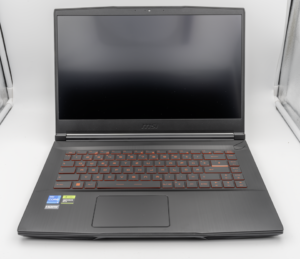
MSI Titan 18 HX A14V (Core i9-14900HX, RTX 4090)

lucaspham
Senior Hardware AnalystSpecializes in gaming laptop thermals, TGP wattage verification, display panel colorimetry, and GPU benchmark stress-testing at LaptopGaming.net.