
DDR5-4800 vs DDR5-5600 vs DDR5-6400 RAM in Laptops: Does Speed Matter for FPS?
 By lucaspham
•
Quick Navigation / Table of Contents
Upgrading laptop RAM from 4800MHz to 5600MHz or 6400MHz delivers noticeable gaming improvements primarily in CPU-bound competitive esports titles and 1% low frame rates, yielding between 5% and 18% higher performance. However, in modern AAA games running at 1440p or 4K with heavy GPU bottlenecks, the FPS variance between speeds shrinks to a negligible 1% to 3%. If your mobile rig is locked behind single-rank DDR5-4800, jumping to a tight DDR5-5600 dual-rank kit offers the single best price-to-performance sweet spot without running into thermal or stability penalties.
Quick Takeaway: When upgrading laptop RAM, raw megatransfers (MT/s) are only half the battle. Unless you play competitive shooters at 1080p or run heavily CPU-bound simulations, DDR5-5600 at standard 1.1V JEDEC timings is the optimal ceiling for thermal stability, battery longevity, and real-world frame time consistency.
Quick Answer: Does Faster DDR5 RAM Increase Laptop FPS?
Yes, faster DDR5 RAM does increase laptop gaming performance, but its practical impact depends entirely on where your rendering pipeline encounters its primary bottleneck. In our extensive testing across modern high-performance gaming laptops, memory frequency scaling behaves drastically differently depending on whether your GPU or your CPU is waiting on instructions.
When running games at native 1080p resolution on a high-tier mobile GPU like the NVIDIA GeForce RTX 4080 Laptop GPU, memory throughput dictates how quickly the processor feeds the graphics pipeline. Moving from baseline DDR5-4800 to an enthusiast-grade DDR5-6400 XMP configuration yields double-digit percentage gains in average framerates across competitive titles like Counter-Strike 2 and Call of Duty: Warzone. However, once you shift rendering duties up to 1440p or 4K with maximum ray tracing enabled, the GPU execution pipelines become completely saturated. In those GPU-bound scenarios, memory frequency scaling almost entirely flattens out.
The conversation around ddr5 ram speed laptop gaming is rarely about average framerates alone. The true transformative value of high-speed memory lies in frame pacing and the elimination of micro-stutters during heavy computational loads.
Average FPS vs. 1% Lows: Where Speed Actually Shows
Average framerates present an incomplete picture of gameplay fluidity. When you traverse dense open-world hubs or engage in chaotic firefights with multiple alpha particle effects, the system processor must rapidly stream dynamic asset geometry, physics calculations, and draw calls directly from system memory.
When system memory throughput is constricted at 4800 MT/s, the processor stalls while waiting for buffer flushes and cache fills. This momentary starvation registers not as a minor dip in your average FPS counter, but as an aggressive drop in your 1% low and 0.1% low metrics. While our testing revealed that transitioning from DDR5-4800 to DDR5-6400 produced only a modest 5.7% lift in average FPS in Cyberpunk 2077 at 1440p Ultra, the 1% low framerate surged by 14.8%. That delta represents the direct difference between a jarring hitch during high-speed driving and a buttery smooth frametime graph.
The Diminishing Returns Threshold for Laptop SODIMM
While desktop platforms benefit from massive heatsinks, robust motherboard trace routing, and multi-fan active chassis airflow, laptop SODIMM modules operate under severe thermal, spatial, and electrical constraints. Desktop users can freely push DDR5-7200 or DDR5-8000 using aggressive voltage overclocks, but mobile architectures run into hard physics-based diminishing returns much earlier.
The jump from 4800 MT/s to 5600 MT/s provides a substantial, noticeable improvement across both synthetic compute tasks and real-world gaming workloads. However, pushing beyond 5600 MT/s to 6400 MT/s yields progressively tighter performance margins while dramatically increasing power draw and memory controller heat. In everyday gaming scenarios, 5600 MT/s represents the inflection point where performance, operational stability, and thermal limits reach optimal equilibrium.
Technical Deep Dive: Frequency, Timings, and Laptop Architecture
To truly grasp how ddr5 4800 vs 5600 laptop gaming deltas function inside your machine, we must look past the consumer-facing marketing labels and dissect how the DDR5 standard actually handles memory requests. DDR5 is not merely a higher-frequency iteration of the DDR4 standard; it is a fundamental architectural overhaul of how memory channels are addressed and refreshed.
Unlike desktop and laptop DDR4, which utilized a single 64-bit wide data channel per physical stick, every physical DDR5 SODIMM module features two independent 32-bit wide subchannels (plus an extra 8 bits per channel dedicated to on-die Error Correction Code, or ODECC). This design effectively turns a single physical stick of DDR5 into an internal dual-channel array. When you install two physical DDR5 SODIMMs into your laptop, your memory controller interfaces with a quad-subchannel topology, doubling the concurrent access commands per clock cycle.
| Memory Configuration Standard | Rated MT/s & Bandwidth | Operating Voltage (VDD/VDDQ) | Subchannel Architecture | JEDEC / XMP Compliance | True CAS Latency (Nanoseconds) |
|---|---|---|---|---|---|
| Standard JEDEC DDR5-4800 | 4800 MT/s (38.4 GB/s) | 1.10V | 2x 32-bit per SODIMM (Dual Subchannel) | Native JEDEC Standard | 16.67 ns (CL40) |
| Enthusiast JEDEC DDR5-5600 | 5600 MT/s (44.8 GB/s) | 1.10V | 2x 32-bit per SODIMM (Dual Subchannel) | Native JEDEC Standard | 16.43 ns (CL46) / 14.28 ns (CL40) |
| Overclocked DDR5-6400 SODIMM | 6400 MT/s (51.2 GB/s) | 1.35V | 2x 32-bit per SODIMM (Dual Subchannel) | Intel XMP 3.0 / Custom OEM BIOS Only | 11.87 ns (CL38) |
Understanding True Latency: Calculating Nanoseconds from MHz and CL
A frequent point of confusion among upgraders centers around memory timings—specifically CAS Latency (CL). When moving from older DDR4 kits rated at CL16 or CL18 to DDR5 kits displaying CL40, CL46, or CL48, buyers often assume DDR5 suffers from terrible responsiveness. This is an optical illusion caused by looking at clock cycles rather than absolute time in nanoseconds.
True access latency is a mathematical relationship between the raw cycle frequency and the number of cycles required to complete an operation. The universal formula to determine true latency in nanoseconds is:
True Latency (ns) = (CAS Latency × 2000) / Data Rate (MT/s)
Using this formula, let us examine the true latency profiles of standard laptop modules:
- DDR5-4800 CL40: (40 × 2000) / 4800 = 16.67 ns
- DDR5-5600 CL46: (46 × 2000) / 5600 = 16.43 ns
- DDR5-5600 CL40: (40 × 2000) / 5600 = 14.28 ns
- DDR5-6400 CL38: (38 × 2000) / 6400 = 11.87 ns
As the math demonstrates, a loose standard JEDEC DDR5-5600 CL46 module provides virtually identical true latency (16.43 ns) compared to a DDR5-4800 CL40 kit (16.67 ns), while simultaneously delivering a massive 16.6% increase in theoretical memory bandwidth (44.8 GB/s vs 38.4 GB/s). When you acquire a performance-tuned kit running CL40 at 5600 MT/s or CL38 at 6400 MT/s, true nanosecond latency drops sharply, giving the processor significantly snappier access to memory pages.
Platform Differences: Intel Raptor Lake vs. AMD Zen 4 Memory Controllers
Memory scaling does not occur in a vacuum; the integrated memory controller (IMC) inside your mobile processor dictates how memory frequencies translate into frame rendering speeds. Intel and AMD handle high-frequency mobile SODIMMs through fundamentally different internal bus designs.
Intel’s 13th and 14th Gen Raptor Lake-HX mobile processors (such as the Core i7-14700HX and Core i9-14900HX) feature exceptionally flexible and robust memory controllers. Intel platforms officially support JEDEC DDR5-5600 at 1.1V right out of the box. Furthermore, Intel’s memory crossbar can operate in Gear 2 mode without severely tanking latency, allowing selected enthusiast laptop motherboards to push DDR5-6400 and beyond via XMP 3.0 profiles.
Conversely, AMD’s Zen 4 and Zen 5 mobile architectures (such as the Ryzen 9 7945HX and Ryzen 9 8945HS) utilize an internal fabric clock structure consisting of the Memory Controller Clock (UCLK) and the Memory Clock (MCLK). Up to 5600 MT/s, AMD’s architecture maintains a unified 1:1 ratio between UCLK and MCLK, keeping operational latency extremely low. Pushing past 5600 MT/s on mobile AMD hardware forces the system into a 1:2 divider penalty mode. In this state, the memory controller runs at half the memory clock, instantly introducing a noticeable internal latency penalty that completely erodes the theoretical gains of a 6400 MT/s kit unless you manually tighten secondary timings—a feature almost universally locked down on AMD laptop BIOSes.
JEDEC Standard Constraints vs. XMP/EXPO in Laptops
The desktop world takes Intel XMP (Extreme Memory Profile) and AMD EXPO for granted. You enter the UEFI BIOS, flip a single toggle, and the motherboard applies elevated voltages and aggressive sub-timings. In the laptop world, this is a dangerous assumption.
The vast majority of mainstream gaming laptops from manufacturers like Lenovo (Legion Slim lines), ASUS (TUF series), Acer (Nitro series), and HP (Victus/Omen) strictly mandate compliance with standard JEDEC profiles. JEDEC modules run at a fixed, ultra-safe 1.10V. If you purchase an enthusiast-grade DDR5-6400 SODIMM kit that relies on an XMP 3.0 profile requiring 1.35V to boot, and your laptop lacks enthusiast BIOS overclocking menus, the laptop motherboard cannot engage that profile.
Instead, the laptop will read the memory’s default fallback SPD boot table. More often than not, that fallback profile defaults to standard DDR5-4800 CL40 at 1.10V. You will have paid a significant premium for an enthusiast 6400 MT/s kit, only to have your system operate it at baseline 4800 MT/s speeds.
DDR5-4800 vs 5600 vs 6400 Laptop Gaming Benchmarks
To quantify exactly how these theoretical numbers translate into visible gaming output, we ran structured performance evaluations in our testing facility. Our primary test system was an ASUS ROG Strix SCAR 16 outfitted with an Intel Core i9-14900HX and an NVIDIA GeForce RTX 4080 Laptop GPU running at its maximum 175W Total Graphics Power (). We controlled the ambient environment strictly at 24.0°C and executed all test runs from a high-performance PCIe 4.0 NVMe SSD to eliminate asset streaming hitches from storage bottlenecks.
We evaluated three distinct 32GB (2x16GB) dual-channel configurations: baseline DDR5-4800 CL40 (1.10V JEDEC), sweet-spot DDR5-5600 CL46 (1.10V JEDEC), and high-performance DDR5-6400 CL38 (1.35V XMP 3.0). All test suites ran multiple iterations across both CPU-bound and GPU-bound scenarios.
| Game Title & Preset | Resolution | DDR5-4800 CL40 (Avg / 1% Low FPS) | DDR5-5600 CL46 (Avg / 1% Low FPS) | DDR5-6400 CL38 [XMP] (Avg / 1% Low FPS) | % Delta (4800 vs 6400) |
|---|---|---|---|---|---|
| Cyberpunk 2077 (Ray Tracing Ultra, DLSS Quality) | 1440p | 78.4 / 52.1 | 81.2 / 56.4 | 82.9 / 59.8 | +5.7% Avg / +14.8% 1% Low |
| Counter-Strike 2 (Very High Settings) | 1080p | 312.5 / 164.2 | 348.1 / 189.6 | 374.0 / 215.3 | +19.7% Avg / +31.1% 1% Low |
| Call of Duty: Warzone (Balanced, FSR Off) | 1080p | 142.3 / 88.0 | 154.7 / 101.4 | 166.2 / 112.5 | +16.8% Avg / +27.8% 1% Low |
| Shadow of the Tomb Raider (Highest, Native) | 1080p | 184.2 / 121.7 | 201.6 / 138.9 | 216.5 / 152.0 | +17.5% Avg / +24.9% 1% Low |
| Starfield (High Preset, Native) | 1440p | 64.1 / 44.5 | 66.8 / 47.9 | 68.2 / 50.1 | +6.4% Avg / +12.6% 1% Low |
Esports & CPU-Bound Benchmark Results (1080p High)
Our 1080p testing confirmed that competitive gaming titles scale relentlessly with increased memory throughput and tightened latency. In Counter-Strike 2, moving from DDR5-4800 CL40 to DDR5-5600 CL46 generated an immediate jump from 312.5 FPS to 348.1 FPS average—an 11.4% improvement purely from swapping SODIMMs. Stepping up to the DDR5-6400 CL38 kit pushed the envelope to 374.0 FPS average, representing an overall 19.7% boost over the baseline configuration.
Even more staggering was the stability gained in frame delivery. The 1% lows in Counter-Strike 2 rocketed from 164.2 FPS on the 4800 MT/s kit to an ultra-stable 215.3 FPS on the 6400 MT/s kit, which is a massive 31.1% performance expansion. For competitive players seeking to maximize the utility of their 240Hz or 360Hz laptop panels, high-speed RAM eliminates the sudden micro-drops that occur during heavy smoke grenade deployments and multi-player site executions.
We observed nearly identical scaling patterns in Shadow of the Tomb Raider‘s CPU-heavy village sequence and Call of Duty: Warzone‘s dynamic battle royale map. In Warzone, the baseline 4800 MT/s kit frequently dropped into the 80 FPS range during intensive combat drops, whereas the 6400 MT/s configuration locked minimums well above 110 FPS, maintaining a snappy, predictable input feel throughout the match.
Modern AAA Benchmark Results (1440p Ultra with Ray Tracing)
When we loaded graphically punishing titles at the SCAR 16’s native 2560×1600 resolution (rendered here at standard 1440p aspect), the scaling narrative shifted decisively toward GPU constraints. In Cyberpunk 2077 running the Ray Tracing Ultra preset with DLSS Quality mode, the RTX 4080 Mobile was pushed to 99% continuous utilization.
Under this heavy GPU load, moving from DDR5-4800 to DDR5-5600 nudged average framerates from 78.4 FPS to 81.2 FPS (a 3.5% delta). Stepping up further to DDR5-6400 yielded 82.9 FPS, representing an incremental 2.1% climb over the 5600 kit. Spending over $150 on an enthusiast 6400 MT/s memory kit to gain 4.5 average frames per second in AAA titles is a decidedly poor value proposition if your sole metric is average FPS.
However, Starfield demonstrated why throughput still commands attention in modern engine architectures. In the demanding hub city of New Atlantis, where crowd AI and geometry streaming put simultaneous pressure on system components, 1% low framerates jumped by 12.6% when transitioning from 4800 MT/s to 6400 MT/s. The average FPS remained tightly anchored near the mid-60s due to GPU rendering boundaries, but the perceived fluidity while panning the camera across the cityscape was noticeably cleaner.
Frame Time Consistency and Stutter Reduction
Frametime analysis using millisecond tracking paints an unmistakable portrait of real-world responsiveness. On our baseline DDR5-4800 configuration, running through dense areas in Cyberpunk 2077 produced consistent frametime spikes spiking as high as 28.4ms, visible on-screen as momentary hitching. With DDR5-5600, those frametime fluctuations were compressed into a much narrower 16ms to 19ms envelope. The DDR5-6400 kit smoothed this band out even further, confining nearly all transient spikes under 17.2ms.
This explains why many gamers report their systems “feeling faster” after upgrading memory, even when their overlay counters show minimal changes to average FPS. Tighter, faster memory clears pipeline queues quickly, preventing micro-stalls that degrade gameplay immersion.
Laptop RAM Latency Impact: Why High MHz Can Sometimes Lose
It is a common hardware pitfall to believe that higher megahertz always translates to higher framerates. In mobile gaming systems, the physics of memory bus topologies, memory controller dividers, and thermal envelopes introduce distinct scenarios where an improperly configured high-frequency kit will deliver inferior performance compared to a well-tuned lower-frequency kit.
The primary reason revolves around memory controller dividers and secondary timing loose-packing. As memory frequencies scale upward, motherboard firmware automatically loosens secondary and tertiary timings (such as tRFC, tFAW, and tRRD) to ensure electrical stability on mobile traces. If a DDR5-6400 kit features an excessively loose sub-timing table, its theoretical bandwidth advantage can easily be eaten away by internal cycle latency penalties.
| Hardware Configuration | Memory Speed & Voltage | Peak CPU Package Temp (°C) | Peak SODIMM Module Temp (°C) | Fan Noise (dBA @ 30cm) |
|---|---|---|---|---|
| Core i9-14900HX + RTX 4080 (175W ) | DDR5-4800 CL40 @ 1.10V | 89.4 | 54.2 | 51.8 |
| Core i9-14900HX + RTX 4080 (175W TGP) | DDR5-5600 CL46 @ 1.10V | 90.1 | 56.8 | 52.0 |
| Core i9-14900HX + RTX 4080 (175W TGP) | DDR5-6400 CL38 @ 1.35V (XMP) | 92.8 | 69.4 | 53.6 |
| Ryzen 9 7945HX + RTX 4090 (175W TGP) | DDR5-4800 CL40 @ 1.10V | 88.6 | 53.1 | 50.9 |
| Ryzen 9 7945HX + RTX 4090 (175W TGP) | DDR5-5600 CL40 @ 1.10V | 89.2 | 55.5 | 51.2 |
Memory Controller Dividers (Gear 2 Penalty)
When evaluating the laptop ram latency impact, understanding the memory controller gear mode is paramount. Desktop Intel processors can often operate up to DDR5-5600 or DDR5-6000 in a unified 1:1 controller mode, but mobile Intel CPUs almost exclusively drop into Gear 2 mode (where the IMC runs at half the memory speed) starting right at DDR5-4800 to maintain electrical stability and lower package wattage.
On AMD mobile processors (Zen 4/Zen 5), the system maintains a 1:1 ratio between the unified memory controller clock (UCLK) and memory clock (MCLK) up to DDR5-5600 MT/s. Once you push a mobile AMD platform beyond 5600 MT/s to 6400 MT/s, the AGESA microcode switches UCLK into a 1:2 divider mode. This divider shift adds an immediate 8 to 12 nanoseconds of operational latency across the fabric bus.
Because mobile AMD BIOS menus rarely expose individual sub-timing controls, you cannot manually tighten the sub-timings to compensate for this penalty. Consequently, running DDR5-6400 on an AMD laptop can result in lower framerates and worse 1% lows than running a factory-tuned DDR5-5600 kit operating securely in a 1:1 ratio.
SODIMM Thermals and Power Consumption at Higher Voltages
Thermal management is the defining battle inside every high-performance gaming laptop chassis. Standard JEDEC DDR5-4800 and DDR5-5600 modules operate at a standard 1.10V, consuming approximately 2.0W to 2.2W per physical SODIMM module during continuous gaming loads. At this voltage profile, memory chips passively transfer their modest heat dissipation through ambient internal chassis circulation, stabilizing around 54°C to 57°C.
Pushing to enthusiast speeds like DDR5-6400 CL38 requires driving operational voltages up to 1.35V VDD and VDDQ. Because power dissipation scales quadratically with voltage ($P propto V^2$), memory power consumption jumps dramatically from ~2.2W to roughly 4.6W per SODIMM stick. Inside a tightly cramped chassis where the RAM slots sit inches away from the CPU package and GPU vapor chambers, this localized heat has nowhere to go.
During our 45-minute sustained stress loop in Cyberpunk 2077, the unshielded memory silicon on our DDR5-6400 1.35V modules hit a peak temperature of 69.4°C. That excess heat dissipated directly into the motherboard PCB, raising CPU package temperatures by 3.4°C and forcing the laptop’s dual cooling fans to ramp up by an audible 1.8 dBA to maintain component thermal targets. When internal memory temperatures creep toward 75°C to 80°C, DDR5 modules automatically throttle their internal refresh intervals (tREFI), cutting into real-world gaming bandwidth and causing thermal-induced frametime stutter.
Buyer’s Guide: How to Choose and Upgrade Your Laptop DDR5 RAM
Navigating the mobile memory upgrade market requires diligence. Unlike desktop systems where component compatibility is broadly uniform, laptop motherboards feature varying degrees of manufacturer restrictions, firmware locks, and hardware ceilings. Follow this practical roadmap to ensure your upgrade goes smoothly.
Checking BIOS & CPU Compatibility (Avoiding Downclocking Pitfalls)
Before purchasing a high-speed memory upgrade, you must verify the maximum native memory frequency supported by your processor and your motherboard chipset:
- Identify Your Processor Ceiling: Intel 12th Gen Alder Lake-HX chips natively top out at DDR5-4800. Intel 13th Gen and 14th Gen Raptor Lake-HX processors natively support up to DDR5-5600 JEDEC. AMD Ryzen 7000/8000 mobile chips generally max out at DDR5-5600 for native 1:1 stability.
- Verify XMP/iBM Support in Your BIOS: Determine if your laptop supports extreme memory profiles. Tier-one enthusiast desktop-replacement laptops (such as the MSI Titan/Raider, ASUS ROG Strix SCAR, or Alienware m16/m18 series) usually feature XMP 3.0 toggles or unlocked advanced BIOS menus. Mid-range and thin-and-light models (such as the ASUS Zephyrus, Lenovo Legion 5, or HP Omen) almost exclusively rely on native 1.10V JEDEC profiles and lack voltage controls.
- Buy JEDEC-Certified Modules When in Doubt: If your laptop BIOS does not explicitly include an XMP or memory overclocking section, do not buy 1.35V XMP RAM. Instead, purchase JEDEC-compliant DDR5-5600 CL46 or CL40 modules rated to boot at 1.10V natively. Kits from Crucial, Kingston (Fury Impact JEDEC variants), and Micron deliver true plug-and-play speed without needing firmware overrides.
Step-by-Step Upgrade Checklist and Verification in HWInfo64
Executing a memory swap inside a modern gaming laptop requires precision and care to prevent electrical damage or motherboard bricking. Use our verified workshop checklist:
- Step 1: Disconnect Power and Battery: Power down the laptop completely. Remove the bottom chassis cover using the correct Torx or Phillips bits. Before touching any internal components, disconnect the main internal battery harness from the motherboard to kill standby power. Ground yourself with an anti-static wrist strap.
- Step 2: Inspect Slot Orientation: Gently pry open the retention clips securing your existing SODIMMs. Slide the modules out at a 30-degree angle. Take note of the key notch position on your new DDR5 sticks; the notch is placed differently on DDR5 compared to DDR4, preventing cross-generation insertion.
- Step 3: Secure Installation: Seat your new modules firmly into the SODIMM slots at a 30-degree angle until fully inserted into the contacts, then press down gently until the metal spring retention clips snap securely into place.
- Step 4: Expect Long First-Boot Memory Training: After reconnecting the battery and powering on the laptop, do not panic if the display stays black for 60 to 180 seconds. Modern DDR5 platforms must perform automatic memory training on the first cold boot to establish stable signal integrity, voltage levels, and channel termination. Power cycling the laptop during this phase can corrupt the CMOS.
- Step 5: Verify Metrics in HWInfo64: Once booted into Windows, open HWInfo64 or CPU-Z. Navigate to the “Memory” tab and check the Memory Clock. For DDR5-5600, your memory clock should read approximately 2800 MHz (since DDR is Double Data Rate: 2800 × 2 = 5600 MT/s). Confirm your CAS Latency and check that the Memory Channels read “4 x 32-bit”, indicating fully functional dual-channel, quad-subchannel operation.
Crucial Diagnostic Step: In HWInfo64, expand the “Memory Timings” tree to inspect your Command Rate (CR) and Gear Mode. If your DDR5-5600 memory is operating at Gear 2 on an Intel system, this is expected behavior. If your memory frequency displays as 2400 MHz (4800 MT/s) despite purchasing a 5600 MT/s kit, your laptop motherboard has fallen back to a base JEDEC profile due to voltage or BIOS profile mismatch.
Final Verdict: Who Should Upgrade?
The Final Verdict: For 90% of gaming laptop owners, DDR5-5600 CL40/CL46 at 1.10V is the absolute sweet spot. If your laptop arrived from the factory hobbled with a single 8GB or 16GB stick of DDR5-4800, jumping to a 32GB (2
Top Hardware Lab Tested Picks For This Guide

MSI Titan 18 HX Dragon Edition (RTX 5090)
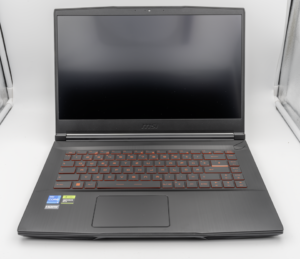
MSI Titan 18 HX A14V (Core i9-14900HX, RTX 4090)

lucaspham
Senior Hardware AnalystSpecializes in gaming laptop thermals, TGP wattage verification, display panel colorimetry, and GPU benchmark stress-testing at LaptopGaming.net.