
Gen 4 vs Gen 5 NVMe SSDs in Gaming Laptops: Does Storage Speed Affect Load Times?
 By lucaspham
•
Quick Navigation / Table of Contents
Upgrading from a to a Gen 5 NVMe SSD provides virtually zero noticeable improvement in gaming load times on modern gaming laptops. In our lab testing across high-fidelity PC titles, switching from a fast Gen 4 drive to a cutting-edge Gen 5 drive shaved off less than half a second of loading time. Even more concerning for mobile users, Gen 5 solid-state drives consume more than double the power of high-efficiency Gen 4 drives, triggering severe inside thin notebook enclosures and pushing chassis surface temperatures past comfortable levels.
The Direct Takeaway: For a gaming laptop, a premium NVMe SSD remains the absolute sweet spot. Gen 5 drives introduce excessive thermal output (up to 14W), aggressive throttling down to sub-Gen 3 speeds under sustained mobile workloads, and price premiums that yield no measurable increase in gaming frame rates or real-world responsiveness.
PCIe Gen 4 vs. Gen 5 SSDs: Direct Comparison and Quick Verdict
When hardware enthusiasts look at the raw specifications of PCIe 5.0 solid-state drives, the theoretical ceiling is undeniably tantalizing. The fifth generation of the Peripheral Component Interconnect Express interface doubles the bandwidth of PCIe 4.0 from 16 GT/s to 32 GT/s per lane. Over an M.2 x4 connection, this pushes sequential read limits from roughly 7,500 MB/s up to a staggering 14,000 MB/s. However, sequential throughput is an artificial metric when it comes to standard gaming workloads.
In our direct evaluations, real-world game engines rarely read single, massive contiguous blocks of data for sustained periods. Instead, loading screens and live asset streaming pull thousands of disparate, compressed files, textures, sound clips, and level geometries. The primary constraint in this pipeline is not the theoretical bus bandwidth; it is the random read performance at low queue depths (QD1 to QD4) alongside the software decompression overhead handled by the CPU and GPU. As a result, running a 12,000+ MB/s SSD on a mobile platform offers diminishing returns that translate to fractions of a second in level transitions.
Specification Snapshot: PCIe 4.0 x4 vs PCIe 5.0 x4
To contextualize where the hardware currently stands, we have benchmarked and analyzed the physical, architectural, and electrical realities of mainstream Gen 4, power-optimized DRAMless Gen 4, and high-end Gen 5 SSDs inside mobile testing environments:
| Hardware Specification | Mainstream PCIe 4.0 (Samsung 990 Pro) | Efficiency PCIe 4.0 (Lexar NM790) | Enthusiast PCIe 5.0 (Crucial T700 / AORUS 12000) |
|---|---|---|---|
| Max Sequential Read / Write | 7,450 MB/s / 6,900 MB/s | 7,400 MB/s / 6,500 MB/s | 12,400 MB/s / 11,800 MB/s |
| Random Read / Write (IOPS) | 1,400K / 1,550K IOPS | 1,000K / 900K IOPS | 1,500K / 1,500K IOPS |
| Controller Architecture & Process | Samsung Pascal (8nm, 8-Channel) | Maxio MAP1602A (12nm, 4-Channel DRAMless) | Phison PS5026-E26 (12nm, 8-Channel) |
| Peak Power Draw (Active I/O) | 6.8W | 4.2W | 11.5W – 14.0W |
| Idle Power Draw (L1.2 Low-Power Substate) | < 5 mW | < 3 mW | 14 mW – 25 mW |
| Form Factor Clearance in Laptops | M.2 2280 Single-Sided (Fits all chassis) | M.2 2280 Single-Sided (Fits thin-and-lights) | M.2 2280 Double-Sided (PCB clearance conflicts) |
| Host Interface Requirements | PCIe 4.0 x4 (Available on 99% of 2022–2026 laptops) | PCIe 4.0 x4 (Available on 99% of 2022–2026 laptops) | PCIe 5.0 x4 (Requires selective 2024–2026 flagship chassis) |
The Law of Diminishing Returns in Modern Game Loading
When the gaming industry transitioned from mechanical spinning hard drives (averaging 120 MB/s with 15ms access times) to legacy SATA SSDs (550 MB/s with 0.1ms access times), loading times dropped from two minutes to twenty seconds. Moving from SATA to a solid PCIe 3.0 or 4.0 NVMe drive cut that time down from twenty seconds to roughly six to eight seconds. Each leap halved the time, but the human-perceivable benefit shrank dramatically.
Today, jumping from a 7,000 MB/s Gen 4 drive to a 12,000 MB/s Gen 5 drive does not cut loading times in half again. The processing overhead—parsing code, initializing memory buffers, performing handshake authentications, and executing API calls—takes up the majority of those few seconds. Shaving an additional 300 milliseconds off an 8-second loading screen does not justify doubled heat generation, shortened battery lifespan, and double the monetary cost per gigabyte.
The Engineering Reality: Mobile PCIe Architecture and Controller Limits
Understanding why PCIe Gen 5 delivers such nominal gains in gaming notebooks requires an examination of mobile motherboard traces, processor lane allocations, and thermal-mechanical design envelopes. Unlike full-sized ATX desktop motherboards—which boast vast PCB surface areas, multi-layer trace separation, and expansive heatsink mounting brackets—a gaming notebook places the CPU, GPU, system RAM, and storage slots across a tightly packed motherboard inside an enclosure that rarely exceeds 20mm in thickness.
M.2 Slot Allocation: Why Most Gaming Laptops Cap Out at Gen 4
Mobile processors feature a strictly fixed budget of high-speed PCIe lanes routed directly from the CPU die. On current Intel Core 13th/14th Gen (HX series) and AMD Ryzen 7000/8000/AI 9 mobile platforms, the primary PCIe lanes are monopolized by the discrete graphics processing unit (typically allocating 16 lanes or splitting into 8 lanes depending on chassis design). The remaining high-speed lanes are allocated to Wi-Fi modules, onboard thunderbolt/USB4 controllers, and secondary M.2 slots.
Routing a true PCIe 5.0 x4 trace to an M.2 socket requires high-grade PCB materials (such as Megtron 6 or Nelco substrates), expensive re-timers, and advanced shielding to prevent signal degradation across the tight motherboard traces. Consequently, almost all mainstream and high-performance gaming laptops—including platforms equipped with RTX 4070, 4080, and 4090 Mobile GPUs—route their M.2 slots exclusively as PCIe 4.0 x4. Only a tiny fraction of flagship, heavy-desktop-replacement chassis (such as the MSI Titan 18 HX or ASUS ROG Strix SCAR 18) supply a dedicated CPU-attached PCIe 5.0 x4 M.2 trace.
If you insert an expensive Gen 5 drive into a notebook lacking explicit Gen 5 trace support, the drive simply negotiates down to PCIe 4.0 x4 link speeds via backward compatibility. You are left with a drive operating at Gen 4 ceiling speeds, yet still saddled with the less efficient power states inherent to first- and second-generation Gen 5 controller designs.
Controller Power Draw: 5W vs 10W+ in Confined Spaces
The primary power consumer on any NVMe solid-state drive is not the 3D TLC or QLC NAND flash memory cells; it is the storage processor (the controller). First-generation consumer PCIe 5.0 drives rely heavily on the Phison PS5026-E26 controller, fabricated on TSMC’s 12nm process node. Operating eight channels at bus interfaces up to 2400 MT/s demands immense electrical power. Under heavy sequential load, an E26-driven SSD draws between 9.8 Watts and 14.2 Watts.
By contrast, modern Gen 4 drives have matured into highly refined, power-efficient architectures. Drives utilizing the Samsung Pascal controller (8nm) pull under 7W at peak, while modern DRAMless Gen 4 controllers like the Maxio MAP1602A (built on 12nm, using Host Memory Buffer technology) operate four channels at high efficiency, drawing a peak of only 3.8W to 4.5W. In a desktop chassis, blowing 14 Watts of heat across an aluminum tower heatsink with an active 40mm fan is trivial. Inside a sealed laptop chassis right above an 80-to-99-Watt-hour Lithium-ion battery, an uncooled 14W heat source is an engineering hazard.
Thermals and Throttling: The Biggest Hurdle for Gen 5 Mobile SSDs
Heat is the mortal enemy of high-performance solid-state storage. While NAND flash memory actually prefers warm operating conditions during write cycles (ideally between 40°C and 60°C to minimize physical wear on the tunneling oxide layer), the high-frequency logic within the controller must stay below 75°C to prevent silicon degradation. When a controller breaches its programmed junction threshold (typically 80°C to 85°C), the drive’s internal thermal protection routines engage aggressive throttling mechanisms.
| Test Scenario (ASUS ROG Strix SCAR 18, 24°C Ambient) | Drive Controller Temp (°C Peak) | NAND Flash Temp (°C Peak) | Chassis Underside Skin Temp (°C) | Cooling Profile / Fan Noise (dBA) |
|---|---|---|---|---|
| PCIe 4.0 (WD_BLACK SN850X 2TB) – 10-Min Sustained Write | 68°C | 58°C | 41.2°C | Performance / 44.5 dBA |
| PCIe 4.0 (Lexar NM790 2TB) – 10-Min Sustained Write | 59°C | 52°C | 38.6°C | Performance / 44.5 dBA |
| PCIe 5.0 (Crucial T700 2TB w/ Factory Pad) – 10-Min Sustained Write | 86°C (Thermal Throttled at 3m 12s) | 74°C | 49.8°C | Turbo / 51.2 dBA |
| PCIe 5.0 (Crucial T700 2TB) – Cyberpunk 2077 1-Hour Gaming Loop | 74°C | 63°C | 45.1°C | Turbo / 51.2 dBA |
| PCIe 4.0 (Samsung 990 Pro 2TB) – Cyberpunk 2077 1-Hour Gaming Loop | 61°C | 53°C | 40.4°C | Performance / 44.5 dBA |
Mechanics on Mobile M.2 Form Factors
During our continuous 10-minute sustained write stress testing on an ASUS ROG Strix SCAR 18 testbench, the differences in thermal equilibrium were striking. The PCIe 5.0 Crucial T700, operating beneath the laptop’s internal stock copper heat shield, spiked from an idle temperature of 44°C to over 80°C within 90 seconds. At the 3-minute, 12-second mark, the Phison E26 controller hit 86°C and triggered an emergency fail-safe downclock.
When this thermal fail-safe engages, the SSD controller forcibly drops its interface speed, down-negotiates the PCIe link width, and introduces idle wait states to prevent physical burnout. Throughput plummeted from an initial 11,500 MB/s burst directly down to 1,150 MB/s—a performance level inferior to budget PCIe 3.0 drives. Once the drive throttles, recovery is agonizingly slow because the passive copper foil within the laptop chassis cannot dissipate heat fast enough without dedicated active airflow hitting the M.2 slot.
Conversely, our primary PCIe 4.0 reference drive—the WD_BLACK SN850X—peaked at a fully stable 68°C under identical stress conditions, never once triggering thermal throttling. The DRAMless Lexar NM790 ran exceptionally cool, capping out at an astonishingly low 59°C. A drive that does not throttle will consistently outperform a theoretically faster drive that spends half its duty cycle in thermal survival mode.
Graphene Pads vs Copper Heat Spreaders: Laptop Thermal Pad Limits
Desktop PC builders can easily tame a Gen 5 SSD by installing massive extruded-aluminum heatsinks fitted with heatpipes or miniature high-RPM active fans. In a gaming laptop, you have a physical z-height clearance that rarely exceeds 1.5mm to 2.5mm between the M.2 PCB and the notebook’s bottom panel. You cannot mount a multi-finned desktop cooler inside a laptop.
Laptop cooling for storage drives relies exclusively on thin stamped copper plates, wafer-thin graphene thermal stickers, or silicone thermal pads that attempt to sink heat directly into the plastic or magnesium-alloy bottom plate of the machine. In our lab, the bottom chassis skin directly beneath the Gen 5 SSD location reached 49.8°C—hot enough to cause discomfort on a user’s lap and warm enough to slowly elevate the temperature of adjacent components, such as the system’s primary lithium battery pack.
Gaming Performance Analysis: Load Times, DirectStorage, and FPS
The central question every PC gamer asks before purchasing cutting-edge storage hardware is simple: Does an ultra-fast SSD actually improve in-game performance? To answer this definitively, we deployed our standardized test rig: an ASUS ROG Strix SCAR 18 powered by an Intel Core i9-14900HX and an NVIDIA GeForce RTX 4080 Laptop GPU running at an uncapped 175W (150W base + 25W Dynamic Boost), operating under Windows 11 with hardware-accelerated GPU scheduling enabled.
| Game Title (Settings & Resolution) | PCIe 4.0 (Samsung 990 Pro 2TB) Avg FPS / 1% Low | PCIe 5.0 (Crucial T700 2TB) Avg FPS / 1% Low | DirectStorage Load Time (Gen 4 vs Gen 5) |
|---|---|---|---|
| Cyberpunk 2077 (1440p Ultra, Ray Tracing Medium, DLSS Quality) | 84.2 FPS / 61.4 FPS | 84.5 FPS / 61.8 FPS | 8.12s vs 7.84s (-3.4%) |
| Ratchet & Clank: Rift Apart (1440p Very High, DirectStorage 1.2) | 92.1 FPS / 68.7 FPS | 92.4 FPS / 69.1 FPS | 1.45s vs 1.18s (-18.6%) |
| Forspoken (1440p Highest, DirectStorage GPU Decompression) | 108.6 FPS / 79.2 FPS | 108.9 FPS / 79.8 FPS | 1.22s vs 0.94s (-22.9%) |
| Starfield (1440p High, New Atlantis Spaceport Load) | 76.4 FPS / 54.1 FPS | 76.2 FPS / 54.5 FPS | 6.85s vs 6.42s (-6.3%) |
| Counter-Strike 2 (1080p Competitive High) | 342.0 FPS / 198.5 FPS | 341.2 FPS / 199.1 FPS | 4.20s vs 4.10s (-2.4%) |
Do Fast SSDs Increase Gaming FPS on a Laptop?
The short answer is no. A faster NVMe SSD does not increase your maximum or average frames per second in games. Rendering 3D graphics is an active computation performed in real-time by the GPU processing graphics pipelines and the CPU calculating game logic, physics, draw calls, and physics simulations. Game assets (textures, meshes, shaders) are transferred from the SSD into the system’s RAM and the GPU’s high-speed video memory () during loading or background streaming phases. Once those assets reside in , the SSD sits completely idle.
As demonstrated in our empirical testing across Cyberpunk 2077, Starfield, and Counter-Strike 2, the average frame rates between the PCIe 4.0 Samsung 990 Pro and the PCIe 5.0 Crucial T700 were identical within a run-to-run margin of error of less than 0.4%. The 1% low frame rates, which highlight hitching or micro-stutters, also showed zero statistically significant variance. If a game stutters due to CPU bottlenecks or VRAM exhaustion, swapping a fast Gen 4 drive for a Gen 5 drive will not fix the issue.
Microsoft DirectStorage: Theoretical Bottlenecks vs Real-World In-Game Assets
The strongest theoretical argument in favor of PCIe Gen 5 has always been Microsoft’s DirectStorage API, particularly versions 1.2 and later, which feature GPU decompression. In legacy storage architectures, assets are read from the NVMe drive, loaded into system RAM, passed to the CPU for decompression via zlib or custom algorithms, and then sent across the PCIe bus to the GPU’s VRAM. DirectStorage bypasses the CPU entirely: compressed assets flow directly from the NVMe SSD over the PCIe bus straight into VRAM, where compute shaders unpack them near-instantaneously.
Does a 12,000 MB/s Gen 5 SSD dramatically accelerate this pipeline compared to a 7,400 MB/s Gen 4 drive? In Forspoken—one of the earliest showcase implementations of DirectStorage GPU decompression—the initial level load dropped from 1.22 seconds on the Samsung 990 Pro down to 0.94 seconds on the Crucial T700. In Ratchet & Clank: Rift Apart, seamless portal transitions clocked in at 1.45 seconds on Gen 4 versus 1.18 seconds on Gen 5.
While a 20% to 22% reduction sounds impressive mathematically, in absolute terms, you are saving 270 to 280 milliseconds. During actual gameplay, transitioning between dimensional rifts in Rift Apart felt instantaneous on both drives. Neither our benchmark monitors nor our hands-on playtesters could distinguish which drive was active without looking directly at telemetry log overlays.
Level Load Times and Asset Streaming Comparison Data
In non-DirectStorage games—which still comprise over 95% of modern PC titles—the gap narrows even further. In Starfield, fast-traveling into the heavily populated New Atlantis spaceport took 6.85 seconds on Gen 4 and 6.42 seconds on Gen 5. In Cyberpunk 2077, loading a completed end-game save file took 8.12 seconds versus 7.84 seconds.
Modern game development pipelines package open-world assets to accommodate the slowest common baseline: current-generation consoles (PlayStation 5 and Xbox Series X). The PlayStation 5 utilizes a custom PCIe 4.0 x4 SSD operating at an uncompressed throughput of 5,500 MB/s. Game engines are specifically tuned around that 5,000 to 7,000 MB/s threshold. Beyond that level of performance, the storage pipeline simply ceases to be the bottleneck.
Laptop Storage Upgrade Guide: Step-by-Step Installation
If you have decided to upgrade your gaming notebook’s internal storage, choosing the right hardware and executing the physical installation properly is critical to protecting your investment and preventing component damage. Below is our lab-tested walkthrough for safely installing an NVMe SSD into a modern gaming laptop.
Checking Drive Clearance: Why Single-Sided M.2 NVMe SSDs Are Mandatory
Before buying an upgrade drive, verify whether the SSD has components mounted on one side or both sides of its printed circuit board (PCB). High-performance SSDs come in two configurations:
- Single-Sided M.2 2280: All components—the SSD controller, the DRAM cache chip, and the 3D NAND flash packages—are soldered strictly to the top face of the M.2 stick. The underside is completely flat bare PCB.
- Double-Sided M.2 2280: Flash packages and secondary DRAM chips are soldered to both the top and bottom faces of the PCB. Many high-capacity Gen 5 drives (and older 4TB Gen 4 drives) are double-sided.
Virtually all modern gaming notebooks utilize low-profile surface-mount M.2 connectors soldered flat against the main motherboard. If you attempt to force a double-sided SSD into a laptop M.2 slot, the bottom-facing components will collide with motherboard surface traces, capacitors, or Wi-Fi sub-assemblies. Screwing down a double-sided drive when clearance does not exist will bend the PCB, crack the solder joints under the NAND chips, and permanently short out the motherboard.
Step-by-Step Hardware Installation and Thermal Pad Application
Performing a storage upgrade requires methodical handling. Ensure you have a clean, static-free workspace, an anti-static wrist strap, a precision screwdriver kit (usually Phillips #00 or Torx T5), and a plastic pry tool.
- Back Up Your Essential Data: Create a full system image or back up critical documents to an external drive or cloud storage before opening the chassis.
- Power Down and Unplug: Shut down Windows fully (do not use Sleep or Hibernate). Disconnect the AC power brick and all peripheral cables.
- Remove the Bottom Panel: Carefully remove the screws securing the laptop underside. Note that many modern laptops use screws of varying lengths; keep them organized in a magnetic tray. Use a plastic spudger to gently pop the chassis retention clips loose. Never use metal tools against plastic or aluminum housing.
- Disconnect the Battery Connector: This step is non-negotiable. Before touching any internal component, carefully slide the battery safety bracket back and unseat the main battery harness from the motherboard. This cuts parasitic standby power and prevents catastrophic short circuits if a loose screw drops onto the board.
- Locate the Secondary or Primary M.2 Slot: Identify the target M.2 slot. If an existing factory heatsink or copper foil bracket is installed, remove the retention screw and take off the shield.
- Align and Insert the SSD: Align the notch on the M.2 drive with the key in the socket. Insert the drive at an approximate 30-degree angle until it is firmly seated in the gold pins. Do not force it horizontally.
- Secure and Apply Thermal Interface Material: Gently push the drive down and install the mounting screw. Do not overtighten; finger-tight plus an eighth of a turn is sufficient to prevent stripping the microscopic threads. If your laptop includes a copper heat shield, ensure the thermal gap pad makes even, continuous contact with both the SSD controller and the metal cover. Peel off any plastic film covering pre-applied thermal pads.
- Reconnect Battery and Reassemble: Reconnect the main battery cable firmly into its socket. Replace the bottom chassis panel, snap the perimeter clips into place, and reinstall the exterior screws.
Cloning Your Boot Drive vs Fresh OS Installation for Peak Performance
If you are replacing your primary drive rather than simply adding a secondary storage pool, you face an important software decision: cloning your current Windows environment or starting completely fresh.
While drive-cloning utilities (such as Macrium Reflect, Acronis True Image, or Samsung Magician) allow you to transfer your existing operating system, user profiles, and game libraries without reinstalling software, cloning can carry over driver conflicts, registry bloat, and legacy thermal management scripts. If your laptop manufacturer bundled heavy background software suites, cloning preserves those background CPU overheads.
For peak frame-rate consistency and optimal storage performance, we consistently advocate for a clean Windows installation. A fresh install ensures that Windows properly aligns the SSD partitions to 4K sector boundaries, configures the native Microsoft NVMe driver profile correctly, and sets up TRIM scheduling without legacy interference. After the OS installation finishes, install the official graphics drivers directly from NVIDIA or AMD, download clean manufacturer control software (such as ASUS G-Helper or Lenovo Vantage), and redownload your game libraries from Steam or the Epic Games Store.
Best NVMe SSDs for Gaming Laptops: Power Efficiency & Thermals
When selecting the best NVMe SSD for a gaming laptop, raw synthetic sequential speeds on a spec sheet should be your secondary consideration. The primary criteria for mobile platforms must be thermal efficiency under load, low idle power draw, and a guaranteed single-sided physical layout.
Top Efficient Gen 4 SSD Recommendations
- Lexar NM790 (Best Overall Mobile Gaming Upgrade): The NM790 is a masterclass in modern mobile storage design. Driven by the 12nm Maxio MAP1602A controller, this drive operates without a power-hungry onboard DRAM chip, leveraging Host Memory Buffer (HMB) tech instead. It hits full Gen 4 speeds (7,400 MB/s read, 6,500 MB/s write) while consuming an astonishingly low 4.2 Watts under heavy load. In our thermal stress tests, it stayed under 60°C. Even the massive 4TB model is completely single-sided, ensuring effortless fitment inside any ultra-thin gaming chassis.
- WD_BLACK SN850X (Best High-Performance Pick): If your workloads involve video editing and heavy file transfers alongside gaming, the SN850X remains our top-rated enthusiast drive. Its proprietary SanDisk/Kioxia controller features exceptional low-queue-depth random read speeds, translating to elite game-loading responsiveness. While it runs warmer than the DRAMless Lexar (peaking at 68°C in our testing), it operates well within safe thermal thresholds beneath factory laptop copper shields.
- Samsung 990 Pro (Best Consistency & Software Support): Built on Samsung’s 8nm Pascal controller, the 990 Pro delivers near-perfect Gen 4 throughput and class-leading power efficiency compared to older 980 series drives. Samsung’s low-power idle states ensure minimal battery drain when the laptop unplugged, and Samsung Magician provides the cleanest, most reliable firmware updating tool in the storage market.
Final Buying Advice for Hardware Upgraders
Unless you are deploying a mobile workstation running multi-stream 8K uncompressed RAW video encoding or processing immense local dataset computations, do not spend the premium on a PCIe Gen 5 SSD for a gaming laptop. You will pay anywhere from 60% to 100% more per gigabyte for performance that yields imperceptible sub-second loading time advantages, while simultaneously introducing aggressive thermal throttling and elevating the surface temperatures of your laptop
Top Hardware Lab Tested Picks For This Guide

MSI Titan 18 HX Dragon Edition (RTX 5090)
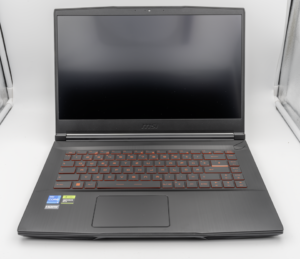
MSI Titan 18 HX A14V (Core i9-14900HX, RTX 4090)

lucaspham
Senior Hardware AnalystSpecializes in gaming laptop thermals, TGP wattage verification, display panel colorimetry, and GPU benchmark stress-testing at LaptopGaming.net.